

![[Command Code logo]](https://commandcode.ai/docs/commandcode-logo.svg)
![[Command Code logo]](https://commandcode.ai/docs/commandcode-logo-for-light.svg)
Command Code Studio
Studio is the home for managing your Command Code workspace. It gives you a single place to view and control your profile, taste packages, API keys, usage, billing, settings, and more.
When you sign in to Command Code, youll land in Studio. Use the left sidebar to move between sections.
At the top, Studio gives you a real-time usage, tokens, and runs with instant access to Billing, API Keys, and detailed Usage analytics.
 [Usage]
![[Usage]](https://commandcode.ai/docs/command/studio-overview.jpg)
Studio also includes a lightweight getting started panel with the Command Code CLI. Install, authenticate, and start chat sessions right from your terminal.
Taste Studio is used to manage your taste preferences. You can manage them via npx taste commands (or the equivalent cmd taste subcommand).
You can use Taste Studio to:
- View Taste Profile: See your taste categories (cli, react, typescript)
- Push taste profiles: Use
npx taste pushto push taste to studio - Pull taste profiles: Use
npx taste pullto pull taste from studio - Team management: Invite org members to share @teammate-username/taste
Push taste profile to the Command Code Studio
You can push a taste profile to the Command Code Studio to share it with your team.
 [Push a taste profile]
![[Push a taste profile]](https://commandcode.ai/docs/command/taste-push.webp)
Push a taste profile
View all taste profiles
Navigate to the Taste tab in the Studio to see all your taste profiles.
 [Taste Studio]
![[Taste Studio]](https://commandcode.ai/docs/command/taste-ui-studio.png)
Pull a taste
You can pull a taste profile from the Command Code Studio to your different projects.
 [Install the taste profile]
![[Install the taste profile]](https://commandcode.ai/docs/command/studio-cli-taste-install.png)
Pull a taste profile
Explore your taste profile
Click on a taste profile to explore it. This shows you the taste profile's details, the taste.md file, and the confidence scores.
 [Taste Studio]
![[Taste Studio]](https://commandcode.ai/docs/command/taste-md-studio.png)
For the full taste workflow and the npx taste command reference, see the Taste docs.
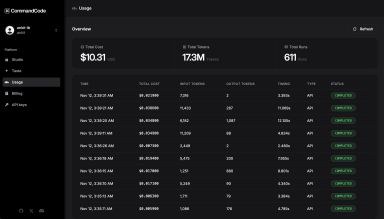
Track your usage for every single request you make in Command Code.
Usage Tab
Navigate to the Usage tab in the Studio to see your usage. This shows you the total cost, and the total number of tokens used for each request.
 [Usage]
![[Usage]](https://commandcode.ai/docs/command/usage-list.webp)
Usage Details
Click on a request to see the usage details. This shows you the each request's usage, the total cost, and the total number of tokens used.
 [Usage Details]
![[Usage Details]](https://commandcode.ai/docs/command/usage-details.jpg)
For plans, credits, and per-model rates, see Pricing & Limits.
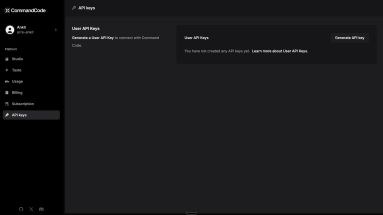
API Keys are used to authenticate you for using Command Code.
How to get your API key
You can get your API key by following these steps:
Login
Login to your account on Command Code.
Navigate
Navigate to your API keys page.
 [Command Code API keys]
![[Command Code API keys]](https://commandcode.ai/docs/command/api-key-section.webp)
Generate
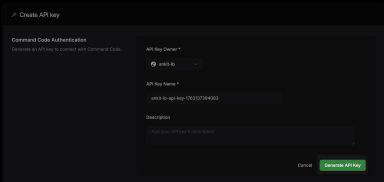
Click on the Generate API key button to generate a new API key.
 [Command Code API keys]
![[Command Code API keys]](https://commandcode.ai/docs/command/generate-api-key.webp)
Manage
From here you can manage your existing API keys.
 [Command Code API keys]
![[Command Code API keys]](https://commandcode.ai/docs/command/manage-api-keys.webp)
Using the API key in Provider API
You can utilize the same API key to access the Command Code Provider API. Read the provider API reference here.
Using the API key in CI
For non-interactive environments (CI pipelines, Docker images, scheduled
jobs), export the Command Code API key as the COMMAND_CODE_API_KEY environment
variable. The CLI reads the env var at startup and uses it as the auth token. No need to run cmd login or pre-write an auth.json file to login with Command Code.
The env var takes precedence over ~/.commandcode/auth.json. It
overrides any local authentication method.
Run cmd status to confirm the output which will show Source: $COMMAND_CODE_API_KEY
when the env var is the active credential.
Treat the key as a secret: use your CI provider's encrypted-secrets store (GitHub Actions secrets, GitLab CI variables, etc.) rather than committing it to the repo.
Organizations let you group users, projects, and resources into a shared Command Code workspace. Theyre built for teams so you can collaborate, manage, and track team-level usage and billing in one place.
Each organization has its own profile, taste studio, API keys, usage & billing, and, settings. You can switch between organizations anytime to work across different teams or projects.
Create an organization
- Click your profile avatar in the top-right corner of Studio.
- Select Create Organization.
- Enter a name and description.
- Click Create.
Youll be redirected to the organizations profile page, where you can configure taste preferences, manage API keys, review usage and billing, and update settings.
Invite members
- Open your organization.
- Go to Settings.
- Scroll down to Members.
- Enter the email addresses of the people you want to invite.
- Click Add Member.
Invited members will receive an email with instructions to join your organization.
- Read the Quickstart to get up and running with Command Code in minutes.
- Set up and share your Taste profile.
- Join our Discord community for feedback, requests, and support.