


This page lists the ways you can customize Chrome DevTools.
Settings
Settings > Preferences contains many options for customizing DevTools.
See Open Settings and Preferences.
Dark theme
You can enable dark theme in Settings or the Command Menu.

- Open the Command Menu.
Start typing
dark, select the Switch to dark theme command, and then press Enter to run the command.Alternatively, set your theme in Settings > Preferences > Appearance > Themes.

Dynamic theme
DevTools can automatically match Chrome's color theme.
To set a theme:
- Open a new tab and click Customize Chrome in the right bottom corner.
- In Appearance, pick a theme through Change themes or select a color palette.
 [DevTools matches the color theme selected in Appearance.]
To turn off dynamic theming, clear Settings > Preferences > Appearance > Match Chrome color scheme and reload DevTools.
Drawer
The Drawer contains many hidden features.
Press Escape to open or close the Drawer.

Click More Tools to open other Drawer tabs.
 [The More Tools button that opens other Drawer tabs.]
Change DevTools placement
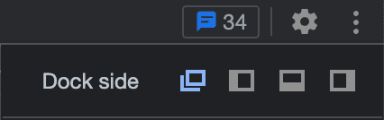
By default, DevTools is docked to the right of your viewport. You can also dock to the bottom or left sides or undock DevTools into a separate window.
You can change the placement of DevTools in two ways:
- Main Menu: Open Customize And Control DevTools and click:
- Undock into separate window
- Dock to left
- Dock to bottom
- Dock to right
Command Menu:
- Open the Command Menu.
- Start typing
dockand select one of the suggested options: dock to bottom, left, right, undock, or restore last dock position.
 [Suggested docking option in the Command Menu.]
To toggle Restore last dock position with a keyboard shortcut, press:
- On Linux or Windows: Control+Shift+D
- On MacOS: Command+Shift+D
Reorder panels, tabs, and panes
To change ordering, click and drag left or right any of the following:
- Panels at the top of DevTools.
- Panes in the Elements panel such as Styles, Computed, Layout, and others.
- Panes in the Sources panel such as Page, Workspace, Overrides, and others.
- Drawer tabs at the bottom of DevTools.
Additionally, you can move panels and tabs up and down to and from the Drawer. To do this, right-click the panel or tab and select Move to top or Move to bottom from the drop-down menu.
Your custom tab order persists across DevTools sessions.
Panel layout
By default, DevTools will auto-rearrange your panel layout depending on window size. You can disable the auto-rearrangement. Go to Settings > Preferences > Appearance and update the panel layout based on your preference.
For example, the Styles pane in the Elements panel will move from the side to the bottom when screen size is small. If you want the Style pane to always stay on the side, change the panel layout to vertical.

Change DevTools UI language
See Settings > Preferences > Appearance > Language.
 [Change language by going to Settings and then Preferences]
Sync settings
You can sync your DevTools settings across multiple devices.
To enable sync, first turn on Chrome Sync. Once enabled, your DevTools settings are synced by default.

You can enable or disable the DevTools settings sync separately using the Settings > Sync > Enable settings sync checkbox.

DevTools syncs most of the settings except those in the Workspace, Experiments, and Devices tabs and a few other general settings. The state of the Enable settings sync checkbox is synced across devices as well.
Note: DevTools also doesn't sync Snippets, they are stored as local preferences.For example, the following Appearance settings are synced, so you have a consistent experience across devices and don't need to re-define the same settings again.

However, the dock setting isn't synced because developers have different dock preferences when debugging on different sites.
![[Chrome for Developers]](https://www.gstatic.com/devrel-devsite/prod/v0f3a5b8b76e4a120372a69044e02756e703b6140f9f1812c6e4a0407b19864b7/chrome/images/lockup.svg)
![[Kayce Basques]](https://web.dev/images/authors/kaycebasques.jpg)
![[Jecelyn Yeen]](https://web.dev/images/authors/jecelynyeen.jpg)
![[Sofia Emelianova]](https://web.dev/images/authors/sofiayem.jpg)
![[The dark theme.]](https://developer.chrome.com/static/docs/devtools/customize/image/the-dark-theme-214125f80d58c.png)
![[The dark theme command.]](https://developer.chrome.com/static/docs/devtools/customize/image/the-dark-theme-command-74e79736013b.png)
![[DevTools matches the color theme selected in Appearance.]](https://developer.chrome.com/static/docs/devtools/customize/image/devtools-theme.png)
![[The Drawer.]](https://developer.chrome.com/static/docs/devtools/customize/image/the-drawer-f13766548e6b1.png)
![[The More Tools button that opens other Drawer tabs.]](https://developer.chrome.com/static/docs/devtools/customize/image/the-more-tools-button-op-38ff00afdfe9f.png)
![[Suggested docking option in the Command Menu.]](https://developer.chrome.com/static/docs/devtools/customize/image/suggested-docking-option-36bf89caffbd3.png)
![[Change panel layout]](https://developer.chrome.com/static/docs/devtools/customize/image/change-panel-layout-a29506e1aa2b2.png)
![[Change language by going to Settings and then Preferences]](https://developer.chrome.com/static/docs/devtools/customize/image/change-language-settings-480257e5e704f.png)
![[Chrome profile sync.]](https://developer.chrome.com/static/docs/devtools/customize/image/chrome-profile-sync-cd4ff4309c99b.png)
![[DevTools sync settings]](https://developer.chrome.com/static/docs/devtools/customize/image/devtools-sync-settings-8d7685eec1f26.png)
![[The appearance settings.]](https://developer.chrome.com/static/docs/devtools/customize/image/the-appearance-settings-5419a170f4e4.png)
![[The dock.]](https://developer.chrome.com/static/docs/devtools/customize/image/the-dock-289e24658563.png)
Customize keyboard shortcuts
See Settings > Shortcuts.