

The Layers panel helps you understand the composition of your website and how the browser renders content. Analyze a 3D diagram of your website to identify rendering issues, fix scrolling bugs, and optimize animations.
Overview
Use the Layers panel to do the following:
- View document layers.
- Inspect document layers.
- Set DOM change breakpoints.
- View Paint Profiler information.
- Identify slow scrolling elements.
Open the Layers panel
To open the Layers panel, follow these steps:
- Open DevTools.
- Open the Command menu by pressing:
- macOS: Command+Shift+P
- Windows, Linux, ChromeOS: Control+Shift+P
 [Command Menu with ]
- Start typing
Layers, select Show Layers panel, and press Enter.
Alternatively, in the top right corner, select more_vert More options > More tools > Layers panel.
Additionally, the Performance panel lets you view the layers of each frame of a recording in a Layers tab. To learn more, see View layers information.
View document layers
The left-most section of the Layers panel lists all rendered layers of the document in an expandable tree. This tree updates as you navigate the page. Layers are identified either by their CSS selector or with a number, followed by the dimensions of the layer in pixels.

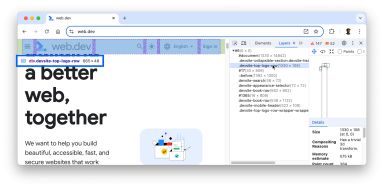
Hover over a layer to highlight it on the web page and in the diagram. A tooltip will appear on the page with the following information:
- The selectors of the layer.
- The layer's dimensions, in pixels.
- An icon representing CSS grid or flex, where relevant.
Inspect document layers
Click a layer to view more information in the Details pane.

Depending on the layer, the following information will appear:
- Size
- Compositing Reasons
- Memory estimate
- Paint count
- Slow scroll regions
- Sticky position constraint
The diagram shows how layers are stacked and arranged for this page, including elements that are positioned outside of the viewport.

To move the diagram:
- Use WASD to move the diagram. Press W to pan up, A to pan left, S to pan down, and Dto pan right.
- Click Pan Mode drag_pan or press X and drag to move along the X and Y axes.
- Click Rotate Mode 360 or press V and drag to rotate along the Z axis.
- Click Reset Transform zoom_in_map or press 0 to reset the diagram to its original position.
- Zoom in by pressing shift + + or mousewheel up.
- Zoom out by pressing shift + - or mousewheel down.
To see a layers corresponding DOM element in the Elements panel, right-click a layer in the diagram or on the layer tree and click Reveal in the Elements panel.
Additionally, the Layers panel hides certain layers that don't host or draw content. To show these layers, right-click on the layer tree and select Show internal layers.
Set DOM change breakpoints
The Layers panel lets you set DOM change breakpoints.
To set a DOM change breakpoint, follow these steps:
- Right-click a layer in the layer tree.
- Hover over Break on then select Subtree modifications, Attribute modifications, or Node removal.
Find a list of DOM change breakpoints in:
- Elements > DOM Breakpoints tab.
- Sources > DOM Breakpoints collapsable section.
 [Breakpoints listed in Sources and Elements panels.]
To learn more about the types of breakpoints, see Types of DOM change breakpoints.
View Paint Profiler information
The Layers panel lets you view detailed paint information about a layer, and render the content of the webpage onto the 3D diagram.
To activate the Paint Profiler, follow these steps:
- Check the check_box Paints checkbox in the action bar.
- Select a layer from the layer tree.
- Click Paint Profiler at the bottom of the Details pane. Note that not all layers will have this option.
The Profiler tab will open with paint records and a histogram that represents paint cost distribution.

![[Chrome for Developers]](https://www.gstatic.com/devrel-devsite/prod/v0f3a5b8b76e4a120372a69044e02756e703b6140f9f1812c6e4a0407b19864b7/chrome/images/lockup.svg)
![[Dale St. Marthe]](https://web.dev/images/authors/dalestmarthe.jpg)
![[Command Menu with ]](https://developer.chrome.com/static/docs/devtools/layers/image/cmdm-layers-panel.png)
![[The layer tree.]](https://developer.chrome.com/static/docs/devtools/layers/image/layer-tree.png)
![[Tooltip on web.dev banner.]](https://developer.chrome.com/static/docs/devtools/layers/image/layers-tooltip.png)
![[The Details tab.]](https://developer.chrome.com/static/docs/devtools/layers/image/layer-details.png)
![[The Layers panel diagram.]](https://developer.chrome.com/static/docs/devtools/layers/image/layers-diagram.png)
![[Breakpoints listed in Sources and Elements panels.]](https://developer.chrome.com/static/docs/devtools/layers/image/lists-dom-breakpoints.png)
![[The Profiler tab.]](https://developer.chrome.com/static/docs/devtools/layers/image/profiler-tab.png)
Activating Paints will also render most of the content of the webpage onto the diagram.
Identify slow scrolling elements
Some websites use JavaScript to detect scroll or touch events on elements in a way that may negatively affect scrolling speeds. To identify layers that contain event listeners related to scrolling that may hinder performance, click the check_box Slow scroll rects checkbox.
 [A slow scroll layer in diagram.]
![[A slow scroll layer in diagram.]](https://developer.chrome.com/static/docs/devtools/layers/image/slow-scroll-rects.png)
Layers that may cause slow scrolling are highlighted in pink.