Google Analytics integration
Youll need help from your development team to set up the integration. Please share this guide with them.
Google Analytics User ID feature lets you collect and apply comprehensive user data by connecting multiple data resources to the same users. Connect Pushwoosh with Google Analytics and use GA data for audience segmentation and targeting your push notifications campaigns. Lets see how it works.
Enable User ID
Anchor link toTo enable User ID feature in your Google Analytics account, follow the Google guide: https://support.google.com/analytics/answer/3123666
Dont forget to create a User ID reporting view (as described in Step 3 of GA guide on User ID enabling).
Set up User ID in your tracking code
Anchor link toWe are Google Tag Manager friendly
We encourage to use Google Tag Manager (GTM) to integrate Pushwoosh SDK. The following code is based on GTM, but it is easy to modify it to run as a simple Javascript on a page.
Integrate Pushwoosh Web SDK
Anchor link toTo integrate Pushwoosh SDK in your Google Tag Manager, follow the Web Push SDK guide.
Create User ID tag in GTM
Anchor link toCreate a Custom HTML Tag firing on All Pages trigger.
Use the following code to set up User ID that matches the user data between Pushwoosh and Google Analytics.
In the example below, we use Pushwoosh Hardware ID (HWID) to set up User ID. You can use a different identifier, but be aware not to put email addresses or any other personally identifiable information (PII) into User ID as this is not compliant with Google Analytics Privacy Policy.
<script> var registrationStatus = localStorage.deviceRegistrationStatus; var registrationId = localStorage.deviceRegistrationId; var gaRegistered = registrationStatus === 'registered' ? registrationId : false;
if (!gaRegistered) { var Pushwoosh = Pushwoosh || []; Pushwoosh.push(['onPermissionGranted', function(api) { api.getParams() .then(function(params) { var hwid = params.hwid; ga('set', 'userId', hwid); ga('send', 'pageview'); localStorage.setItem('deviceRegistrationId', hwid); api.registerUser(hwid); }) }])};</script> [Custom HTML tag in Google Tag Manager for User ID setup]
![[Custom HTML tag in Google Tag Manager for User ID setup]](https://docs.pushwoosh.com/integrations-google-analytics-integration-1.webp)
Add User ID to Page View tag
Anchor link toModify your Page View tag to include User ID if it is known for the user:
<script> var hwid = localStorage.deviceRegistrationId; var registrationStatus = localStorage.deviceRegistrationStatus; var isNeedToTrackUser = hwid && registrationStatus === "registered";
if (isNeedToTrackUser) { ga('set', 'userId', hwid); }; ga('send', 'pageview');</script>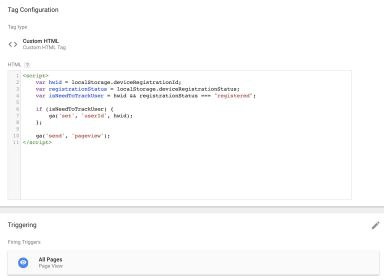 [Page View tag configuration with User ID]
![[Page View tag configuration with User ID]](https://docs.pushwoosh.com/integrations-google-analytics-integration-2.webp)
Test with User ID coverage report
Anchor link toTo test the integration, use User ID coverage report:
https://support.google.com/analytics/answer/3123670
Please note it takes about a day for GA to process the data.
User Explorer
Anchor link toSelect your User ID reporting view in Google Analytics. Add any segments there to slice and dice your audience.
 [New Segment button to divide audience into segments]
![[New Segment button to divide audience into segments]](https://docs.pushwoosh.com/integrations-google-analytics-integration-3.webp)
You can see your User IDs displayed in the User ID column. Use the Export button and select the CSV option to download the list of User IDs.
 [User ID column displaying user identifiers]
![[User ID column displaying user identifiers]](https://docs.pushwoosh.com/integrations-google-analytics-integration-4.webp)
Send push notifications to GA User IDs
Anchor link toTo send a push to users from your GA audience, use One-Time Push and at the Audience step choose Import segment. Upload the CSV file you exported from Google Analytics and map the column that contains User IDs to the User ID field. Learn more