


Languages
Topics Overview JavaScript JSON HTML Emmet CSS, SCSS and Less TypeScript Markdown PowerShell C++ Java PHP Python Julia R Ruby Rust Go T-SQL C# .NET Swift Working with JavaScript Node.js Tutorial Node.js Debugging Deploy Node.js Apps Browser Debugging Angular Tutorial React Tutorial Vue Tutorial Debugging Recipes Performance Profiling Extensions Tutorial Transpiling Editing Refactoring Debugging Quick Start Tutorial Run Python Code Editing Linting Formatting Debugging Environments Testing Python Interactive Django Tutorial FastAPI Tutorial Flask Tutorial Create Containers Deploy Python Apps Python in the Web Settings Reference Getting Started Navigate and Edit Refactoring Formatting and Linting Project Management Build Tools Run and Debug Testing Spring Boot Modernizing Java Apps Application Servers Deploy Java Apps GUI Applications Extensions FAQ Intro Videos GCC on Linux GCC on Windows GCC on Windows Subsystem for Linux Clang on macOS Microsoft C++ on Windows Build with CMake CMake Tools on Linux CMake Quick Start C++ Dev Tools for Copilot Editing and Navigating Debugging Configure Debugging Refactoring Settings Reference Configure IntelliSense Configure IntelliSense for Cross-Compiling FAQ Intro Videos Get Started Navigate and Edit IntelliCode Refactoring Formatting and Linting Project Management Build Tools Package Management Run and Debug Testing FAQOn this page there are 5 sections
Using .NET in Visual Studio Code
.NET provides a fast and modular platform for creating many different types of applications that run on Windows, Linux, and macOS. Use Visual Studio Code with the C# and F# extensions to get a powerful editing experience with C# IntelliSense, F# IntelliSense (smart code completion), and debugging.
Setting up VS Code for .NET development
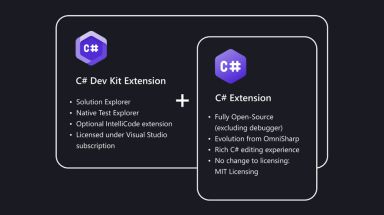
If you are an existing VS Code user, you can add .NET support by installing the C# Dev Kit extension. C# Dev Kit brings a productive and reliable C# experience into VS Code, facilitating C# or multi-language development in VS Code. This extension pack consists of a set of VS Code extensions that work together to provide a rich C# editing experience, AI-powered development, solution management, and integrated testing experiences. As shown in the graphic below, C# Dev Kit consists of:
- The C# extension, which provides the base language services support and continues to be worked on and maintained independent of this effort.
- C# Dev Kit extension, which builds on the same base foundation as Visual Studio and provides solution management, templates, test discovery/debugging.
- The IntelliCode for C# Dev Kit extension(optional), which provides the AI-powered development experience to the editor.
![[]](https://code.visualstudio.com/assets/icons/search-dark.svg)
![[]](https://code.visualstudio.com/assets/icons/search.svg)
![[Switch to the dark theme]](https://code.visualstudio.com/assets/icons/theme-light.svg)
![[Switch to the light theme]](https://code.visualstudio.com/assets/icons/theme-dark.svg)
![[C# Dev Kit extension]](https://code.visualstudio.com/assets/docs/languages/csharp/csharp-devkit.png)
If your projects require F# support, you can also download the .NET Extension Pack, which includes these extensions:
You can also install extensions separately.
Installing the .NET Software Development Kit
If you download the extensions separately, ensure that you also have the .NET SDK on your local environment. The .NET SDK is a software development environment used for developing .NET applications.
Create a C# "Hello World" app
-
Initialize a C# project:
- Open a terminal/command prompt and navigate to the folder in which you'd like to create the app.
- Enter the following command in the command shell:
dotnet run
Create an F# "Hello World" app
-
Initialize an F# project:
- Open a terminal/command prompt and navigate to the folder in which you'd like to create the app.
- Enter the following command in the command shell:
code . -
Run the app by entering the following command in the command shell:
Web Proxy Viewer | New URL | Original Page